


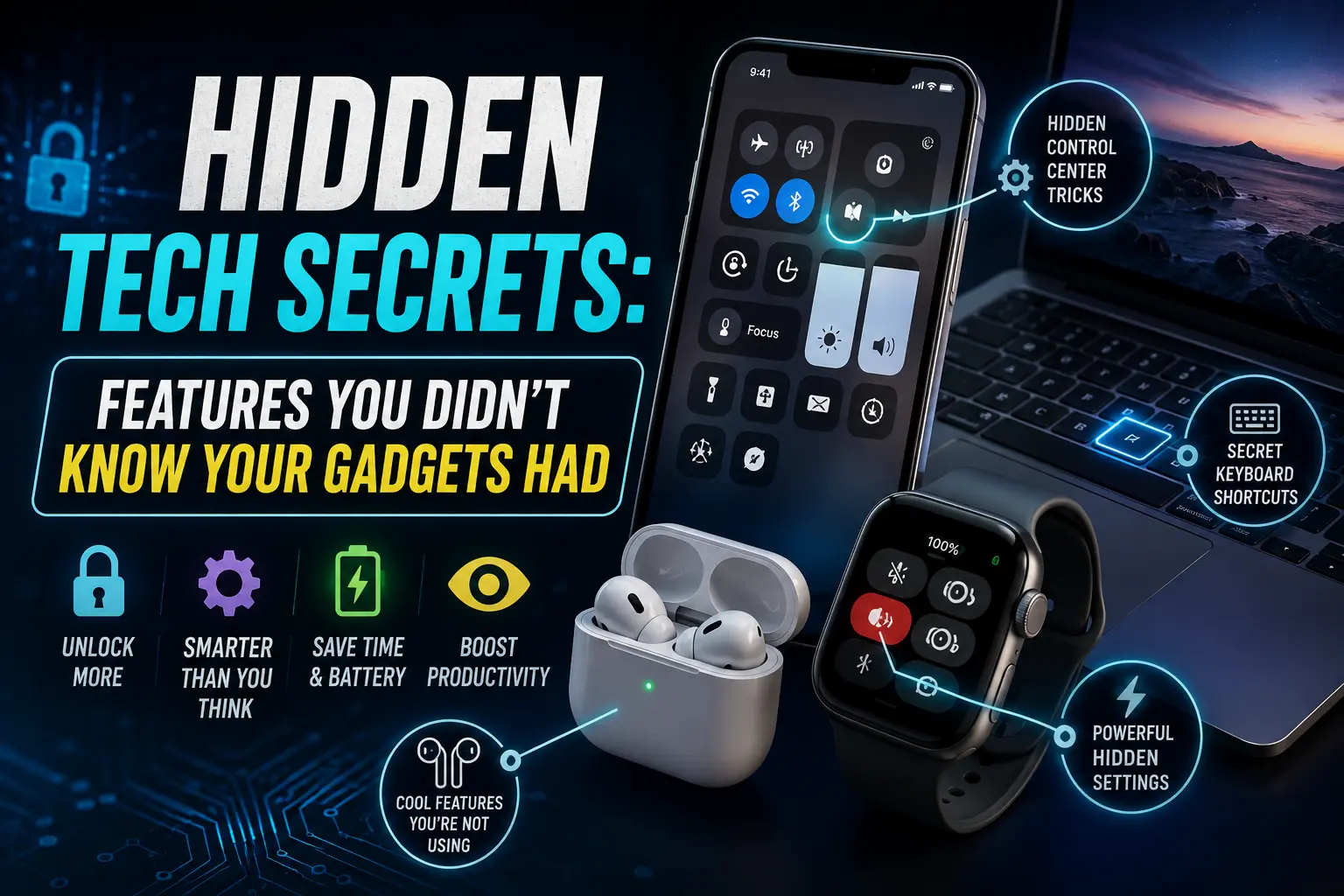
Modern devices are far more capable than their primary interfaces suggest. Most users interact with the surface-level functions of their smartphones, laptops, and home gadgets, leaving powerful utilities untouched within deep menu layers. Discovering these hidden capabilities can significantly streamline your daily workflow, enhance privacy, and provide a more personalized technology experience.
Unlocking Hidden Utility in Mobile Devices
Smartphones often ship with sophisticated tools buried in accessibility or system settings. These features are designed to solve common frustrations, such as privacy concerns or the difficulty of using large devices with one hand.
-
System-Wide Accessibility Menus: Beyond helping those with impairments, accessibility menus offer a customizable floating button. This shortcut provides instant access to core tasks like taking screenshots, adjusting brightness, or locking your screen without using physical buttons.
-
Privacy-First Sandboxing: Many modern operating systems now include “Private Space” or “Guest Mode” features. These allow you to create a secure, separate environment for sensitive apps or to safely lend your phone to someone else without exposing your personal photos, messages, or accounts.
-
Back-Tap Gestures: On many handsets, the area behind the device acts as a hidden touch sensor. You can configure a double or triple tap on the back of the phone to trigger actions like launching the camera, toggling a flashlight, or initiating a voice search.
-
Focus and Bedtime Automations: Digging into system-level “Focus” modes often reveals granular control over which apps can send notifications at specific times. You can even automate these to shift your display to grayscale, reducing the “dopamine hit” from addictive apps during work or sleep hours.
Optimizing Workflow with Advanced Device Tweaks
Computers and productivity tools hold secrets that can drastically reduce the time spent on repetitive tasks. By exploring developer options or specialized settings, you can tailor your hardware to behave exactly how you need it to.
-
Developer Options for UI Snappiness: By tapping the build number in your system settings seven times, you can unlock “Developer Options.” Here, adjusting animation scales can make your device feel significantly faster by reducing the time it takes for windows to transition and menus to open.
-
App Pinning for Focus: If you need to stay on a specific task or want to prevent others from snooping, use screen pinning. This locks a single application to your screen, requiring a secure PIN to exit or switch to any other program.
-
Real-Time Live Captions: Many devices now include a system-wide live caption feature. This can transcribe any media playing on your device—whether it is a video, podcast, or meeting—without the need for third-party software.
-
One-Handed Navigation: If your phone feels too large to navigate, search for “one-handed mode.” This shrinks the active display area into a corner, making the entire interface reachable with just your thumb.
Enhancing Home and Peripheral Gadgets
Beyond the phone in your pocket, home tech and accessories often feature “passive” or “hidden” functionalities that don’t require updates or complex setups.
The most overlooked features are often those that rely on physical design rather than software. For instance, some smart home devices use ultrasonic sensing or advanced motion logic that ignores pets while identifying human movement, effectively eliminating false alarms. Others incorporate modular design, where hardware components can be swapped or stacked to expand functionality without buying entirely new units. Learning the physical nuances of your gear—like knowing exactly where to tap, how to orient sensors, or which hardware shortcuts exist—often provides a more reliable experience than relying on a buggy app interface.
Frequently Asked Questions
1. How can I safely let someone else use my phone?
Use “Guest Mode” or “Screen Pinning.” Guest Mode creates a temporary, clean profile with no access to your personal data, while Screen Pinning locks the phone to one specific app until you enter your passcode.
2. Are “Developer Options” safe to use?
Yes, as long as you stick to basic tweaks like adjusting animation speeds. Avoid changing settings related to system networking or hardware partitioning unless you understand their specific functions, as these can impact device stability.
3. Do accessibility features help people without disabilities?
Absolutely. Many accessibility tools are designed as shortcuts. The “Accessibility Menu” is a popular tool for anyone who wants a customizable on-screen hub for quick actions like volume control or screenshot capture.
4. How can I reduce “doomscrolling” on my phone?
Look for “Bedtime Mode” or “Focus Mode” in your settings. You can set these to turn the display grayscale, which makes social media apps much less visually stimulating and addictive.
5. How do I find hidden features on my specific model?
If you aren’t sure what your device can do, search your settings menu for “Advanced,” “Gestures,” or “Accessibility.” These sections almost always house the most useful, lesser-known features that the initial setup wizard skips over.






Leave a Reply